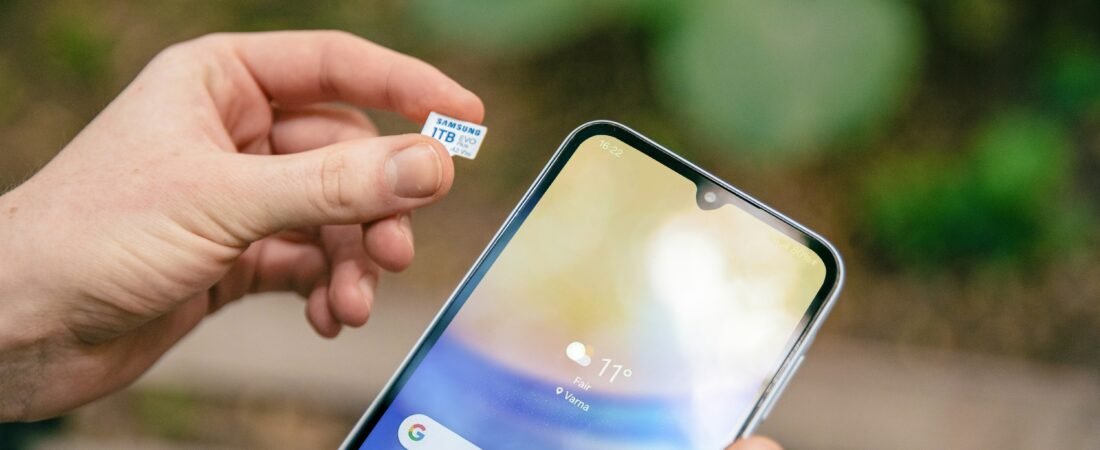
If your phone keeps warning that storage is full, deleting random photos one by one is usually not the fastest solution.
The biggest gains usually come from removing large videos, downloaded files, unused apps, offline media, and duplicated content first.
Here is the most efficient order to clean up your phone storage.
Start With the Biggest Files
Before deleting anything, check your phone’s storage settings.
Look for categories such as:
- Videos
- Photos
- Apps
- Downloads
- Messages
- System data
- Offline media
Focus on the largest categories first.
Deleting ten large videos can free more space than deleting hundreds of small screenshots.
1. Delete Large Videos First
Videos often use far more storage than photos.
Look for:
- Old 4K videos
- Screen recordings
- Long clips
- Duplicate videos
- Videos already backed up to the cloud
Before deleting anything important, confirm that you have a backup if you want to keep it.
2. Clear the Downloads Folder
The Downloads folder often collects files that are no longer needed.
Examples include:
- PDFs
- ZIP files
- Installation files
- Images
- Documents
- Temporary downloads
Sort files by size if your phone allows it.
Large forgotten downloads are often an easy way to recover storage quickly.
3. Remove Apps You No Longer Use
Unused apps can take up significant space.
Pay special attention to:
- Large games
- Video editing apps
- Navigation apps
- Social media apps
- Streaming apps with downloaded content
On some phones, you may also have an option to offload or archive unused apps while keeping some app data.
4. Check Offline Downloads Inside Apps
Deleting an app is not always necessary.
Streaming and media apps may be storing large amounts of offline content, including:
- Netflix or other downloaded shows
- Spotify or music downloads
- Podcasts
- YouTube offline videos
- Offline maps
Open the app itself and check its download settings.
5. Remove Duplicate Photos and Screenshots
Photo libraries can slowly fill with unnecessary images.
Look for:
- Duplicate photos
- Screenshots
- Blurry images
- Burst photos
- Memes
- Old receipts
- Images saved from messaging apps
Some phones include built-in duplicate detection or storage cleanup suggestions.
6. Review Messaging App Media
Messaging apps can accumulate large amounts of media over time.
Check for:
- Videos
- Voice messages
- Photos
- GIFs
- Documents
Group chats can be especially storage-heavy.
Delete only items you no longer need, and consider adjusting automatic download settings if media keeps accumulating.
7. Clear App Cache Carefully
Some Android apps store temporary cached files that can become large.
Clearing cache can free space without deleting your account or personal files.
However:
- Do not clear app data unless you understand what it removes
- Some apps will rebuild their cache later
- iPhone handles app storage differently
If an app is using an unusually large amount of space, check its storage options first.
8. Empty Recently Deleted Folders
Deleting photos or files does not always free space immediately.
Many phones keep deleted items temporarily in folders such as:
- Recently Deleted
- Trash
- Bin
If you are sure you no longer need those files, permanently removing them can free the storage.
What Should You NOT Delete?
Avoid randomly deleting:
- System files
- Unknown folders
- App data you do not recognize
- Backup files you have not verified
- Authentication or security data
If you are unsure what a file does, leave it alone until you can confirm.
Quick Cleanup Order
If you need space quickly, use this order:
- Large videos
- Downloads
- Unused large apps
- Offline streaming content
- Messaging app videos
- Duplicate photos
- Screenshots
- App cache
- Recently Deleted folders
This usually gives better results than deleting small files at random.
Why Does Storage Fill Up Again So Quickly?
If your storage becomes full again soon after cleaning, one or more apps may be continuously downloading or creating data.
Check:
- Automatic photo and video downloads
- Messaging app media
- Offline music
- Podcast downloads
- Camera recording quality
- Cloud apps keeping local copies
- Social apps storing cache
Changing these settings can slow future storage growth.
Does Full Storage Make a Phone Slow?
It can.
When very little storage is available, apps and the operating system may have less room for temporary files and normal processes.
If your phone is also lagging or freezing, freeing space is one of the first things worth trying.
When Should You Upgrade Storage?
If you regularly need to delete important files just to keep the phone usable, your storage needs may be larger than the device can comfortably support.
Options may include:
- Cloud storage
- Moving media to a computer
- External storage on supported devices
- Choosing more built-in storage when replacing the phone
FAQ
What should I delete first when my phone storage is full?
Start with large videos, downloads, unused apps, and offline media. These usually free the most space quickly.
Do photos or apps use more storage?
It depends on how you use the phone. Large games and videos can use much more storage than typical photos.
Is it safe to clear app cache?
Usually yes on supported Android apps, but clearing app data is different and may remove saved information or sign you out.
Why is “System Data” so large?
System and temporary files can grow over time. Some of this storage is managed automatically and cannot be manually deleted.
Will deleting photos from my phone delete them from the cloud?
It depends on the cloud service and sync settings. Always confirm how your backup system works before deleting important photos.
*** If your phone is also lagging or freezing, read why your phone is running slow.
*** If battery life has also become unusually short, see why your phone battery is draining so fast.
*** If the phone becomes hot while using storage-heavy apps, check why your phone is overheating.