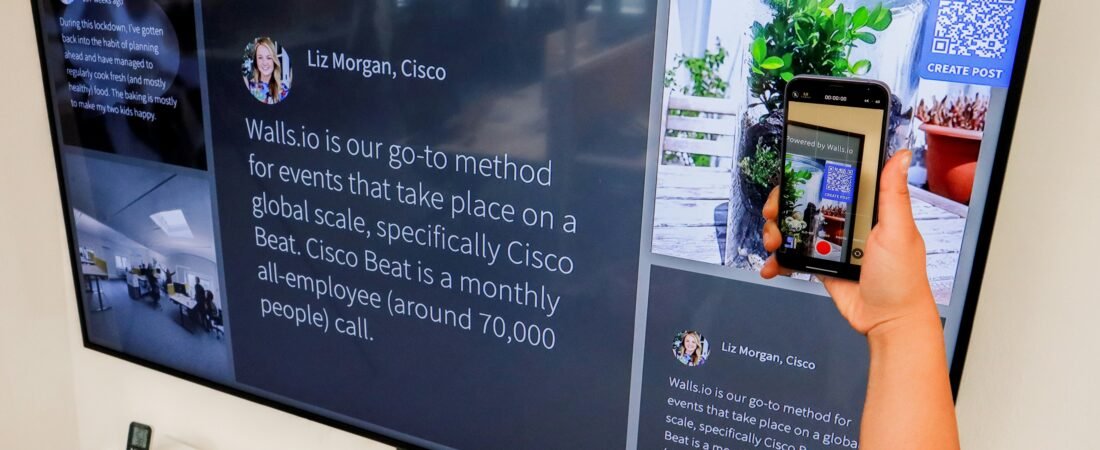
You point your phone at a QR code, wait for the link to appear — and nothing happens.
In many cases, the QR code is not actually broken. Poor lighting, incorrect distance, a dirty camera lens, the wrong camera mode, or damage to the printed code can prevent your phone from recognizing it.
Before looking for a separate QR scanner app, try the checks below.
Start With This 30-Second Test
First:
- Open your phone’s normal Camera app.
- Use Photo mode.
- Make sure the entire QR code is visible.
- Hold the phone steady.
- Move slightly closer or farther away.
- Wait a second or two for a link or notification.
Apple says iPhones can scan QR codes through the Camera app or the dedicated Code Scanner in Control Center. Google also supports QR scanning through compatible camera apps, although exact behavior varies by Android device.
Still nothing? Continue below.
1. Make Sure the Entire QR Code Is Visible
Your camera needs to see the important parts of the code clearly.
Avoid cutting off:
- Corners
- Edges
- The white border around the code
Try moving the phone back slightly until the complete square appears in the camera frame.
On Pixel phones, Google specifically recommends making sure the entire QR code is visible on screen.
You usually do not need to fill the whole screen with the QR code.
2. Clean the Camera Lens
A fingerprint or oily film can make a camera look only slightly blurry to you while making a QR code difficult for the software to recognize.
Wipe the rear camera lens gently with a clean microfiber cloth.
Then try again.
This is especially worth checking if:
- Text in the camera preview looks blurry
- The phone struggles to focus
- You recently handled the camera area
- The QR code is small
3. Improve the Lighting
QR codes are easier to recognize when there is clear contrast between the dark and light areas.
If the location is dark:
- Move into better light
- Turn on nearby lighting
- Avoid strong shadows across the code
- Try your phone’s flashlight if appropriate
Apple’s QR scanner guidance specifically notes that the flashlight can be used to add light when scanning.
Be careful with glossy printed codes: direct light can create glare that makes scanning harder.
4. Change the Distance
Being too close can be just as problematic as being too far away.
If your phone cannot focus:
Move farther away first.
Then slowly move closer until:
- The code becomes sharp
- All four corners are visible
- The phone recognizes it
Do not rely heavily on digital zoom. Physically changing your distance usually gives the camera a cleaner image.
5. Check Which Camera Mode You Are Using
Use the standard Photo mode when possible.
Some camera modes do not support QR recognition.
For example, Google’s Camera from Google documentation says QR codes cannot be scanned in Portrait or Video mode in that app.
So if nothing happens:
- Switch back to Photo mode.
- Point the camera at the code.
- Wait for the link or banner.
On some Android phones, you may also have a dedicated Scan QR Code option in Quick Settings.
Google notes that QR scanning through the default camera varies by device model.
6. Try the Phone’s Dedicated QR Scanner
If the normal camera does not recognize the code, try your phone’s built-in scanner.
On iPhone
Open Control Center and look for Code Scanner.
Apple provides Code Scanner as another way to scan QR codes without relying only on the regular camera interface.
On Android
Look in:
- Quick Settings
- Camera scanning options
- Google Lens
- Your manufacturer’s built-in scanner
The exact location varies by phone.
Avoid installing a random third-party QR scanner before checking whether your phone already has this functionality.
7. Inspect the QR Code Itself
Sometimes the phone is fine and the QR code is the problem.
Look for:
- Tears
- Scratches
- Faded printing
- Fold lines
- Water damage
- Stickers covering part of the code
- Strong glare
- Extremely small printing
- Distortion from a curved surface
QR codes can tolerate some damage, but not every damaged code remains readable.
Quick Test
Try scanning a different QR code.
If other QR codes work normally, the original code is likely the problem.
If no QR codes work, focus on your phone or camera settings instead.
8. The QR Code May Be Clear but No Longer Useful
A successful scan and a working destination are two different things.
Your phone may successfully read the QR code, but the link behind it may lead to:
- An expired ticket
- An old restaurant menu
- A deleted webpage
- An expired login session
- An invalid payment request
- A discontinued promotion
If a link appears when you scan but the page fails after you tap it, the scanner is working.
The problem is with the destination, not QR recognition.
If the QR Code Is on Your Own Phone Screen
You obviously cannot point the same phone’s rear camera at its own display.
Depending on the phone and software, you may be able to:
- Save a screenshot
- Open the image in your photo app
- Use an image-recognition or Lens feature
- Long-press or select a detected QR link
Features vary between phones and operating-system versions.
If that is not available, display the QR code on another screen and scan it with your phone.
Printed QR Code vs Screen: What Changes?
Printed QR Code
Watch for:
- Damage
- Low-quality printing
- Glossy reflections
- Curved surfaces
- Poor lighting
QR Code on a Screen
Try:
- Increasing screen brightness
- Removing glare
- Cleaning the display
- Enlarging the QR code
- Holding the phone farther away
A very dim or cracked display can make the code harder to recognize.
Why Does My Camera See the QR Code but No Link Appears?
If the code is clearly in focus but the phone never offers an action, check whether QR scanning is enabled.
For example, Pixel phones include a Camera scan suggestions setting that should be enabled for QR recognition through the camera.
Settings and names vary by Android manufacturer.
Restarting the camera app or the phone can also clear a temporary camera problem.
Be Careful Before Opening a QR Code
A QR code can hide the destination URL until you scan it.
Before tapping the resulting link:
- Look at the domain shown by your phone
- Be suspicious of misspelled domains
- Avoid entering passwords after scanning an unexpected code
- Be cautious with QR codes placed over another printed code
- Do not enter card information on a suspicious page
This is especially important for QR codes involving:
- Payments
- Parking meters
- Account logins
- Deliveries
- Public Wi-Fi
- Cryptocurrency
The fact that a QR code scans successfully does not mean the destination is trustworthy.
Quick Diagnosis
| Problem | Try this first |
|---|---|
| Camera cannot focus | Clean lens and change distance |
| QR code is dark | Add light |
| Printed code is shiny | Change angle to remove glare |
| Only one QR code fails | Code may be damaged |
| All QR codes fail | Check camera/scanner settings |
| Camera works but no link appears | Try dedicated QR scanner |
| Link appears but website fails | Destination may be expired |
| QR is on your own phone | Use screenshot/Lens or another screen |
The Fastest Fix Order
If you just want to get it working, try this:
1. Clean the lens.
2. Use normal Photo mode.
3. Fit the whole QR code in the frame.
4. Improve the lighting.
5. Move closer or farther away.
6. Try your built-in QR scanner.
7. Test another QR code.
8. Restart the camera or phone.
If another QR code scans successfully, stop troubleshooting the phone — the original code is probably the issue.
FAQ
Why won’t my iPhone scan a QR code?
Try the normal Camera app in Photo mode and make sure the entire QR code is visible. You can also use Apple’s Code Scanner from Control Center.
Why won’t my Android camera scan QR codes?
QR scanning features vary by device. Try standard Photo mode, a QR scanner in Quick Settings, Google Lens, or your phone manufacturer’s scanning feature.
Does a QR code need internet access?
The camera can recognize the code itself without necessarily needing an internet connection. However, you will generally need connectivity if the QR code points to an online webpage or service.
Can a damaged QR code still work?
Sometimes. QR codes include error-correction capabilities, but severe damage, distortion, poor printing, or missing sections can make them unreadable.
Why does the QR code scan but the link does not work?
That means QR recognition succeeded. The linked page, ticket, login session, or other destination may have expired or become unavailable.
Do I need to download a QR scanner app?
Usually not on a modern smartphone. iPhones have Camera and Code Scanner support, while many Android devices provide QR scanning through the camera, Quick Settings, or built-in tools.