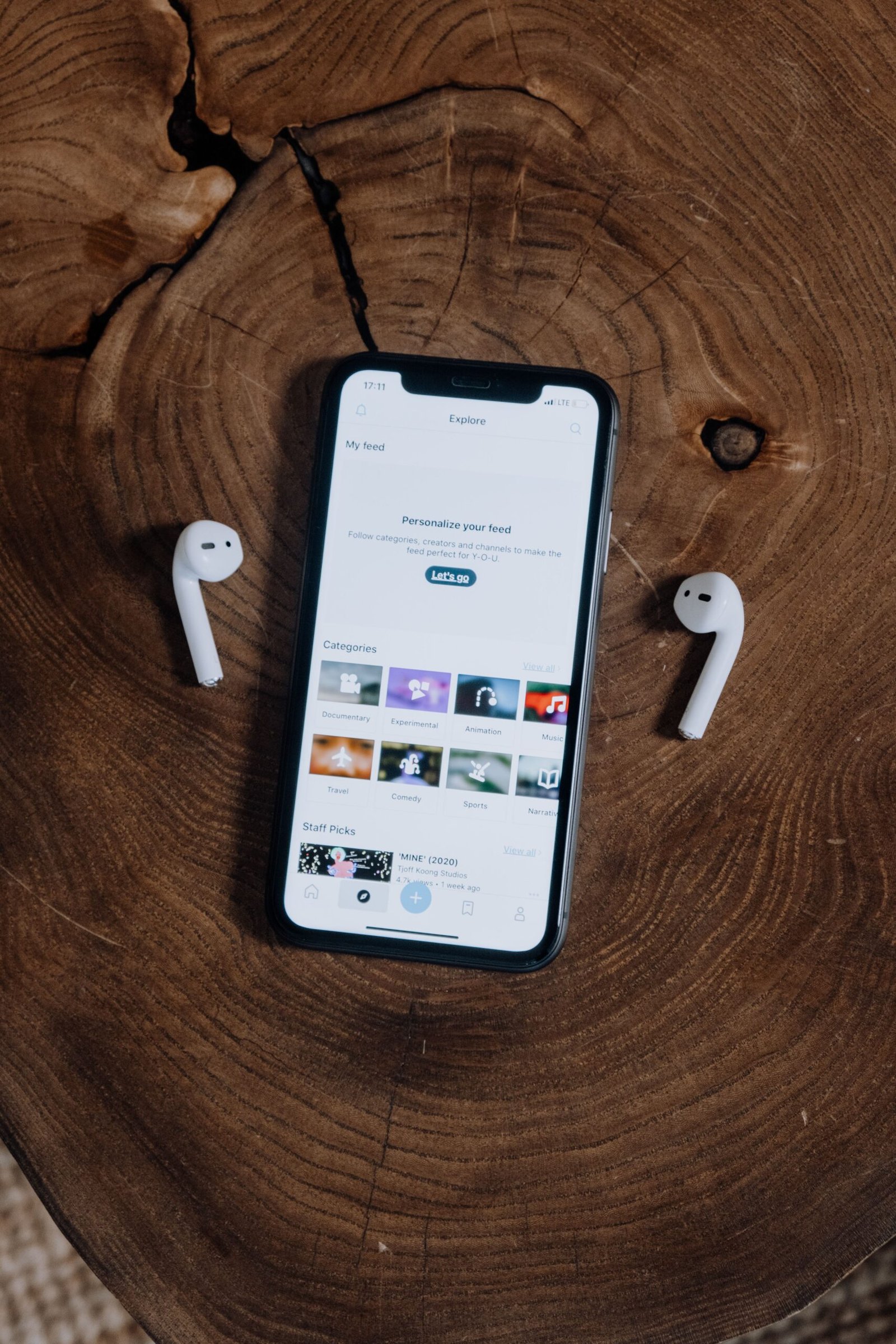
If your phone cannot find, pair with, or stay connected to a Bluetooth device, the problem may be caused by pairing mode, low battery, saved connection data, app permissions, software issues, or the accessory itself.
Apple and Google both recommend starting with basic checks such as toggling Bluetooth, restarting the devices, confirming pairing mode, and removing old pairings before moving to deeper resets.
1. Turn Bluetooth Off and Back On
Start with the simplest step.
Turn Bluetooth off, wait a few seconds, and turn it back on.
Then try connecting to the accessory again.
If the problem started suddenly, this may clear a temporary connection error.
2. Restart Both Devices
Restart your phone and also turn the Bluetooth accessory off and back on.
This can help with temporary software or connection problems.
Google specifically recommends restarting devices as part of its basic Bluetooth troubleshooting process.
3. Make Sure the Accessory Is in Pairing Mode
Many Bluetooth devices must be placed into pairing or discovery mode before a phone can find them.
Examples include:
- Wireless earbuds
- Headphones
- Speakers
- Keyboards
- Car audio systems
- Smartwatches
The exact method varies by device.
If the accessory does not appear in the available devices list, check its instructions and activate pairing mode again.
Apple also recommends confirming that the accessory is discoverable and close to the phone.
4. Check the Accessory Battery
A Bluetooth device with a very low battery may fail to pair or repeatedly disconnect.
Make sure the accessory is:
- Turned on
- Charged
- Connected to power if required
If it uses replaceable batteries, try fresh batteries.
5. Forget the Device and Pair It Again
Saved Bluetooth connection information can sometimes become corrupted or outdated.
Remove the accessory from your phone’s saved devices, then pair it again from the beginning.
On iPhone, this is usually done through:
Settings → Bluetooth → device info → Forget This Device
Android menus vary by manufacturer, but the option is usually called Forget, Unpair, or Remove device.
Both Apple and Google recommend removing a saved pairing and reconnecting when basic troubleshooting does not work.
6. Make Sure the Accessory Is Not Connected to Another Device
Some Bluetooth accessories automatically reconnect to the last phone, tablet, laptop, or computer they were paired with.
If your headphones refuse to connect to your phone, they may already be connected to another device nearby.
Temporarily turn Bluetooth off on the other device or remove the accessory from its saved devices.
Then try pairing again.
Apple specifically suggests unpairing an accessory from other devices if it connects elsewhere but not to the iPhone or iPad you are trying to use.
7. Check App Bluetooth Permissions
Some accessories require a companion app.
If the app does not have Bluetooth permission, the device may fail to connect or configure correctly.
Check the app permissions and make sure Bluetooth access is allowed.
On iPhone, Apple directs users to Settings → Privacy & Security → Bluetooth when an accessory depends on an app.
Android menus vary by version and manufacturer.
8. Reset Network Settings
If Bluetooth still fails across multiple accessories, a network settings reset may help.
This should be one of the last steps because it can remove saved network information.
Depending on the phone, resetting network settings may affect:
- Saved Wi-Fi networks
- Bluetooth pairings
- Mobile network settings
- VPN or APN settings
After the reset, you will need to reconnect your devices.
Quick Diagnosis
| Problem | What to check first |
|---|---|
| Phone cannot find accessory | Pairing mode and distance |
| Accessory appears but will not connect | Forget and re-pair |
| Keeps disconnecting | Battery, distance, interference |
| Works with another phone only | Old pairing or compatibility |
| No Bluetooth devices work | Phone settings or software |
| Only one accessory fails | Accessory itself |
What If Bluetooth Keeps Disconnecting?
Frequent disconnects can be caused by:
- Low accessory battery
- Long distance
- Wireless interference
- Software bugs
- The accessory connecting to another device
- Hardware damage
Move the phone and accessory closer together and test again.
If only one Bluetooth device has the problem, the accessory itself is more likely to be responsible.
When Should You Consider Repair?
Professional support may be appropriate if:
- Bluetooth cannot be turned on at all
- The Bluetooth setting is greyed out
- No accessories can connect
- The problem started after water or impact damage
- Network settings reset does not help
- Multiple known-good accessories fail
If one accessory fails but other Bluetooth devices work normally, repair of the phone is less likely to be necessary.
FAQ
Why won’t my phone find my Bluetooth device?
The accessory may not be in pairing mode, may already be connected to another device, or may be too far away.
Why does Bluetooth say paired but not connected?
The saved pairing may be outdated or the accessory may currently be connected to another device. Forgetting and pairing again can help.
Why does my Bluetooth keep disconnecting?
Low battery, distance, interference, software problems, or competing device connections are common causes.
Will resetting network settings delete my photos?
No. It generally resets connectivity-related settings rather than personal files, but the exact effects vary by phone.
How close should Bluetooth devices be?
Keep them close together during pairing. Apple recommends keeping the accessory near the iPhone or iPad and notes typical Bluetooth accessory range can be around 10 meters depending on conditions.
*** If your phone is also having trouble with wireless internet, read why your phone is not connecting to Wi-Fi.
*** If Bluetooth problems are happening alongside unusually short battery life, see why your phone battery is draining so fast.